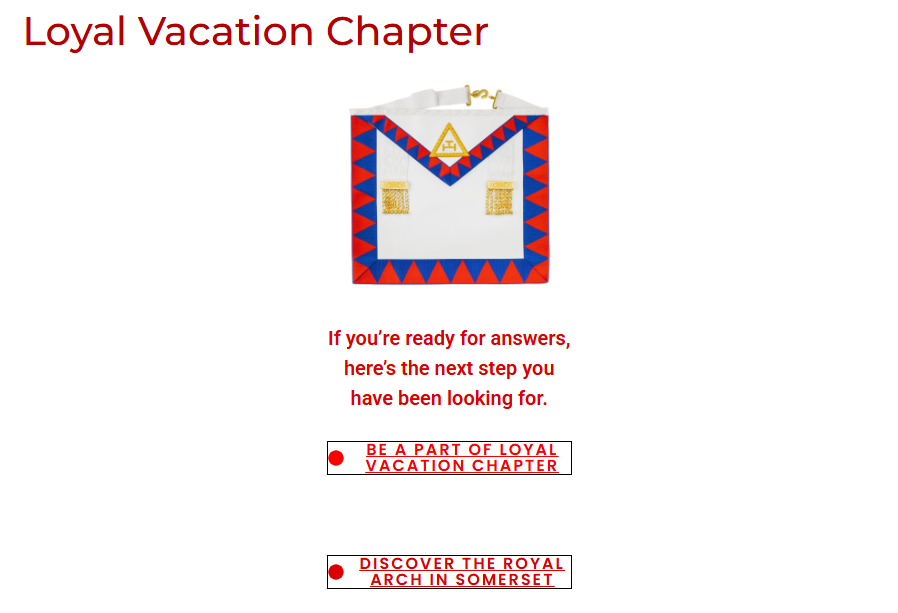
The easiest was to indicate your availability for the Red Table event is using the on-line system. You can either click the link here, or access the link by first going to the Loyal Vacation Chapter web site and selecting :
and then selecting :
“BE A PART OF LOYAL VACATION CHAPTER”
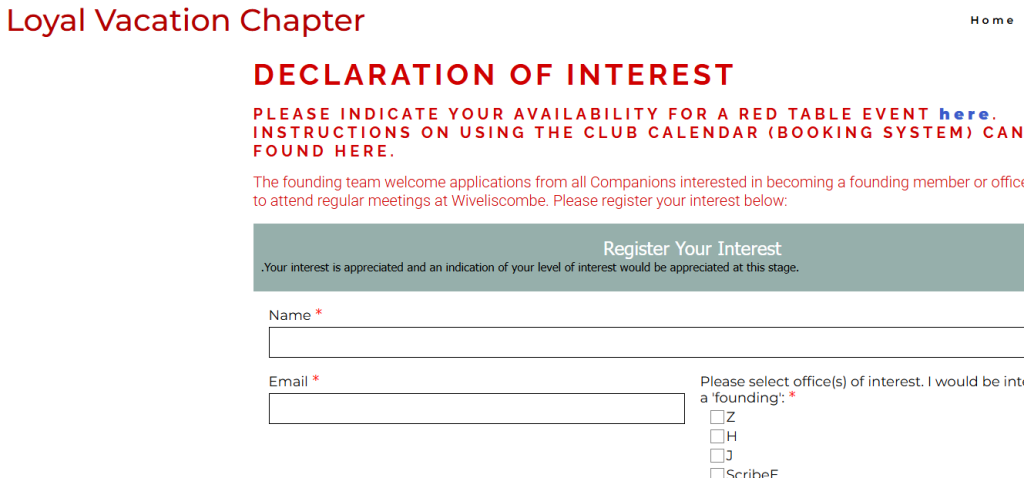
You are then presented with a “Declaration of Interest” page onto which you can register your interest in membership by completing the form. You also have an option to :
“Indicate your availability for a Red Table event here.”
Click on the link and you will be taken to the booking system.
This will take you to the ClubSync system. If this is your first time using the system, you will have to create your own account on the system. This will require you to enter a unique username and register using your email address.
To continue, click on Sign up.
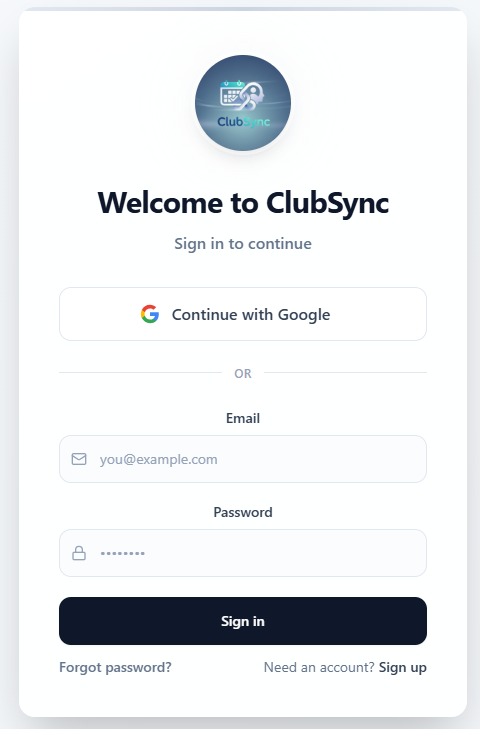
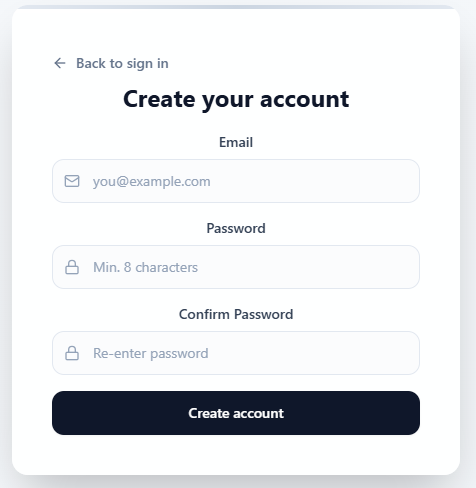
The first time you access the system, you will be asked to enter your email address and a suitable password. You will have the option to create a username later.
Once complete, select “Create an account“.
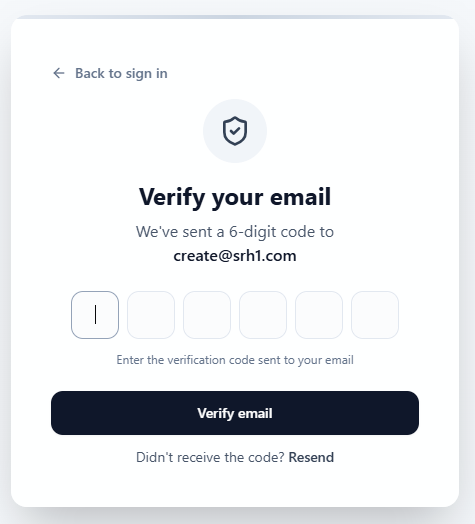
As a security measure, the ClubSync system checks that your email is valid. Go to your email system and look for an email from ClubSync with a six digit code. This will allow you to verify that your email address is correctly recorded. Enter this code into the system and your account will be live.
Be aware that the code is only valid for ten minutes from request, but you CAN always request another if you need one.

Verify
Enter the six digit code and click Verify email.
You have the option to have another code sent to you if you haven’t received one within five minutes from request.
Once completed, you can go back to the sign in screen and use the email address and password you previously used and created.
Options
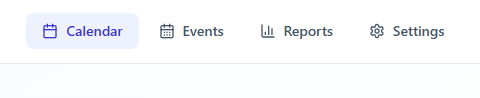
You are then presented with the main screen and you will then have a number of options:
Calendar
Events
Reports
Settings
Calendar
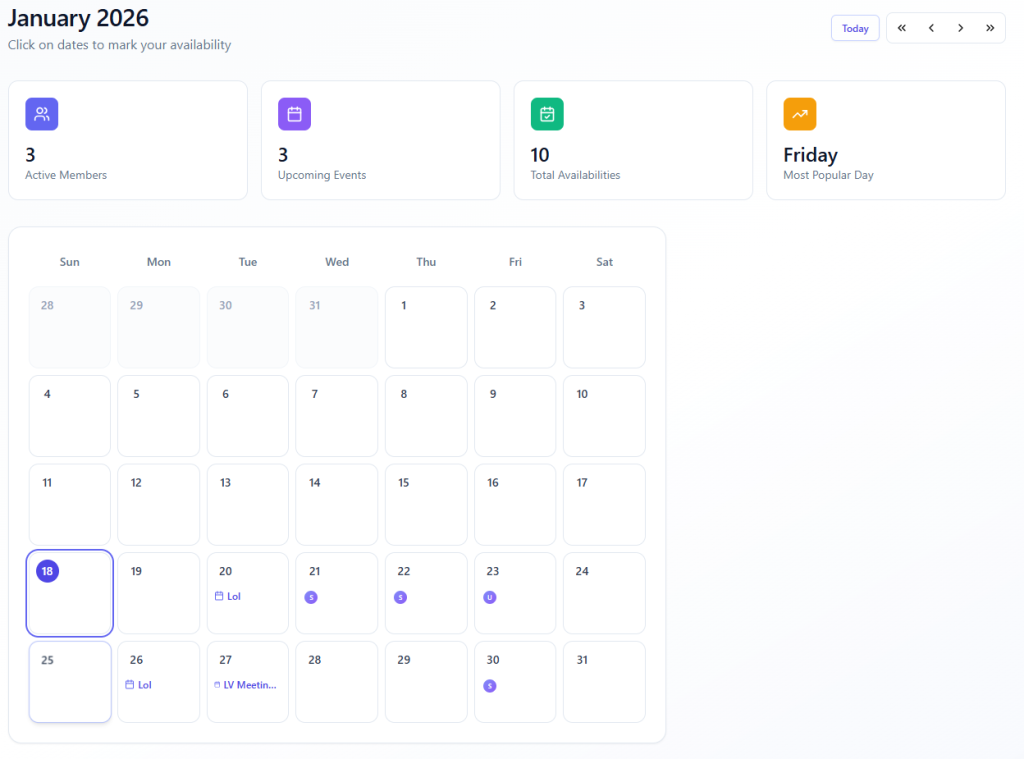
The date on the calendar can be changed by using the chevrons at the top right of your screen.
Single chevrons > navigate by month and double chevrons >> by year.
You will be able to see events that have been added to the schedule and indications from other members of their availability on any particular date.
Settings
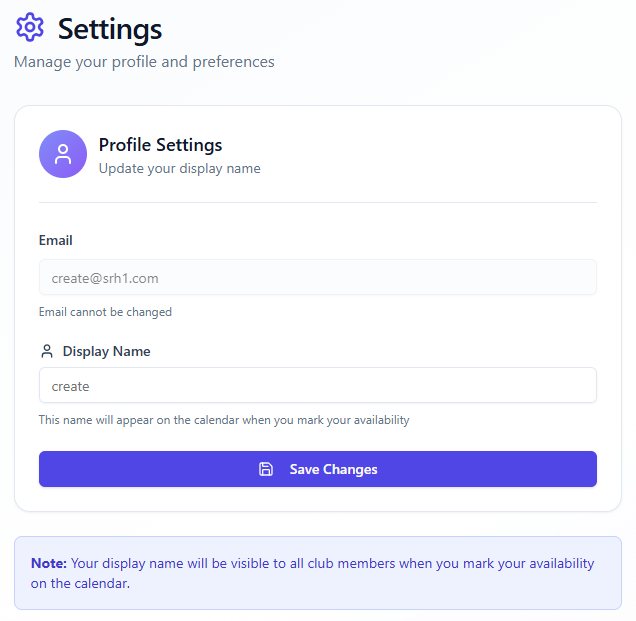
This is where you are able to change your Display Name to something that more closely resembles your name.
The system uses the first character of your Display Name as an Icon, so we would suggest a display name such as “SteveH” or “MarkG“, but the choice is yours.
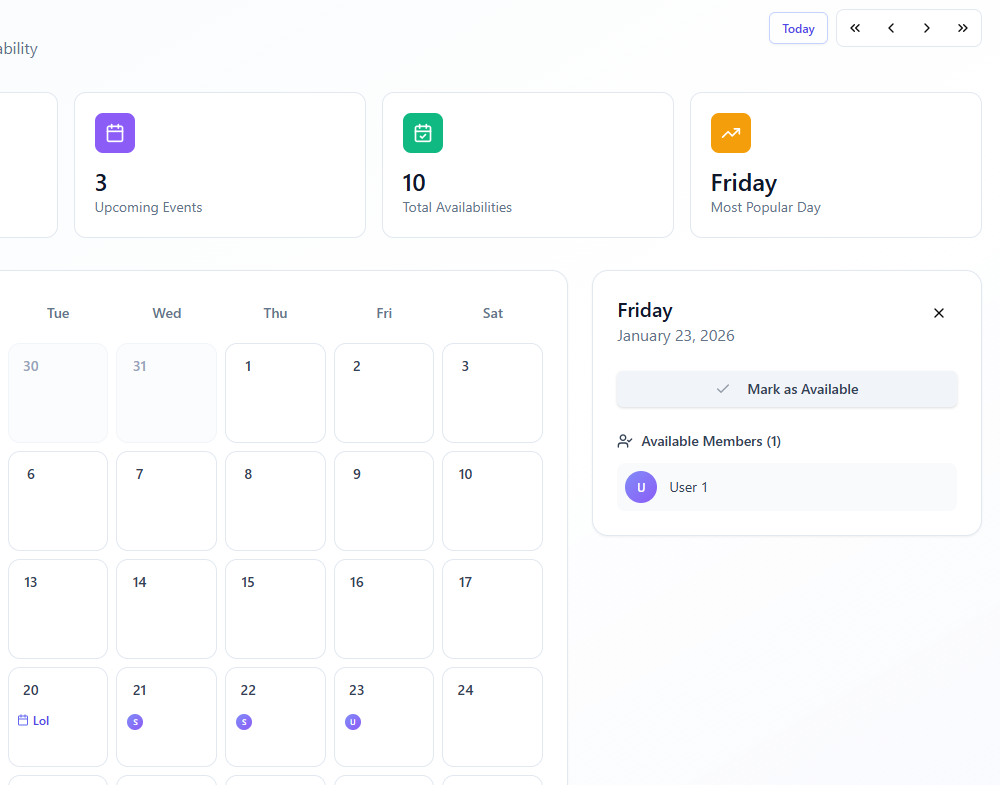
Availability
If you are available on a particular day, just click on that day and a small screen will ‘pop up’ on the right.
Click on the grey button to indicate that you too are Available on that day.
Navigation
A single Chevron [>] changes the month you are viewing and a double chevron [>>] changes the year.
Deleting events
Events can be deleted on this page, so please be cautious about doing that.
Editing / Updating
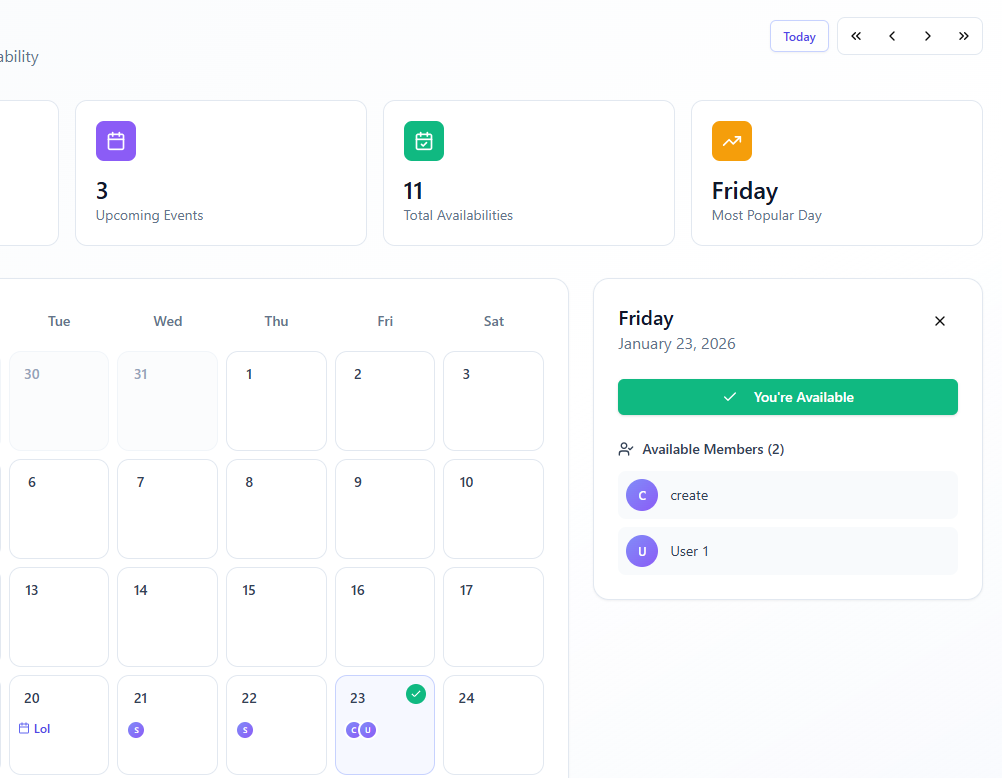
If you make a mistake of become unavailable on that day, you can simply re-select that day and indicate you are no longer available by clicking the same button to change you status.
Finished?
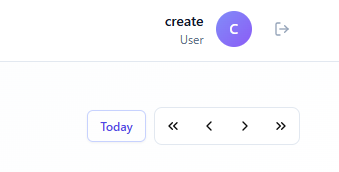
To the right of the settings is a logout button “[->”.
Click on this button when you wish to leave the calendar and it will log you out of the system.
aaa